Data connectors
Written By Natalia
Last updated Almost 2 years ago
Data connectors allow you to access and utilize your data for analysis and reporting purposes through Anlytic platform.
Imagine you have data scattered across various databases or in Excel files. Our data connectors allow you to connect the data to the platform, prepare the data and finally organize the data into a catalog. Therefore, easily utilize the data to create visualizations that can give you useful insights allowing a user to make informed decisions.
In this chapter, we are going to walk you through how you can set up data connections, handle errors, add metadata, create relationships between data, create formulas, and finally organize data into a catalog.
How to set up data connection?
Setting up data connection involves: connecting your data warehouse to the platform, adding meta data, creating relationships, creating formulas and organize data into a catalog.
On top of the lefthand sidebar, you can see the name of the workspaces.
Click on the
nameof the workspace.An options menu will appear with the name of the workspaces, settings, create workspace and log out option.
Click on
settings. From the left-hand sidebar.Click on
sources.Click on the
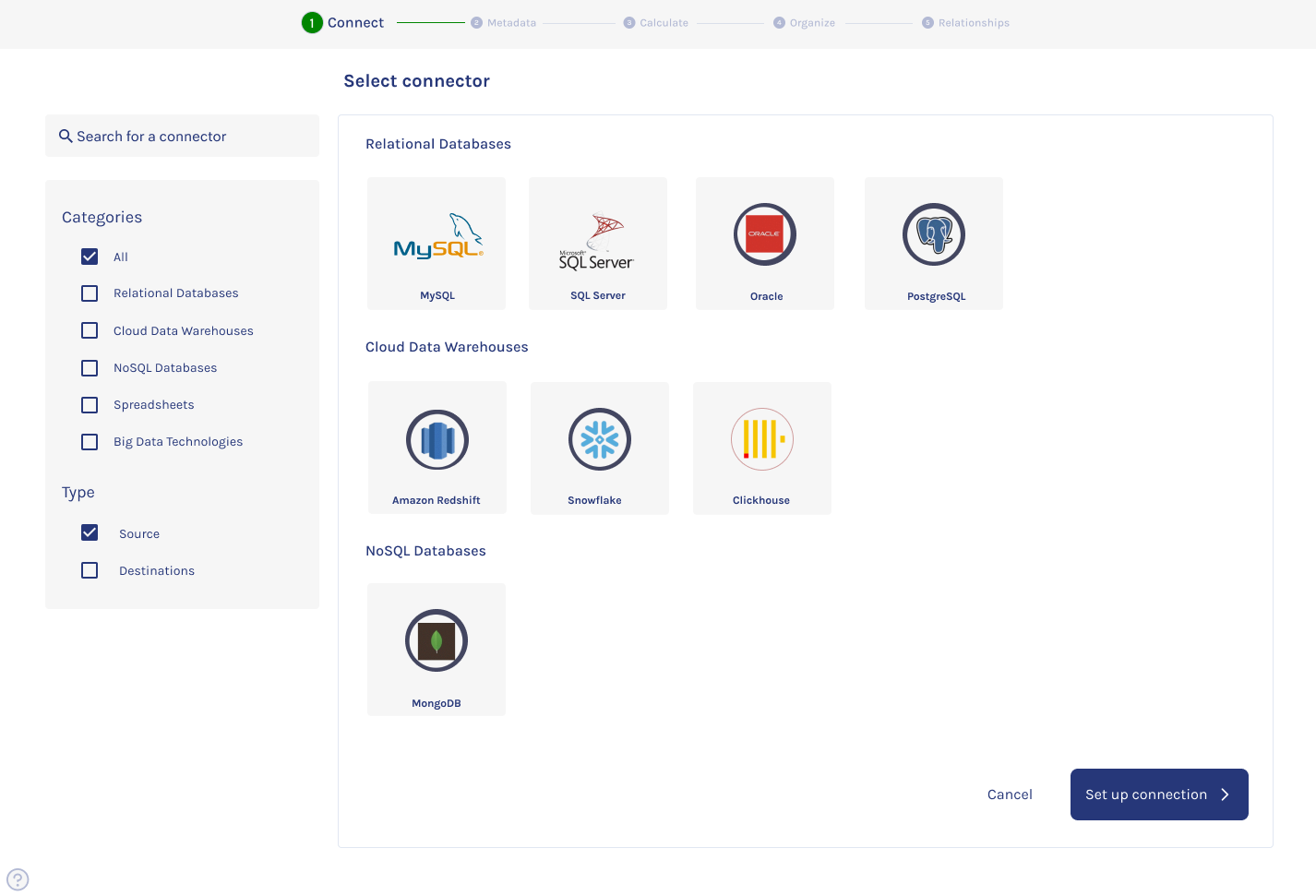
new connectionbutton at the top right hand corner of the screen.Select the cloud
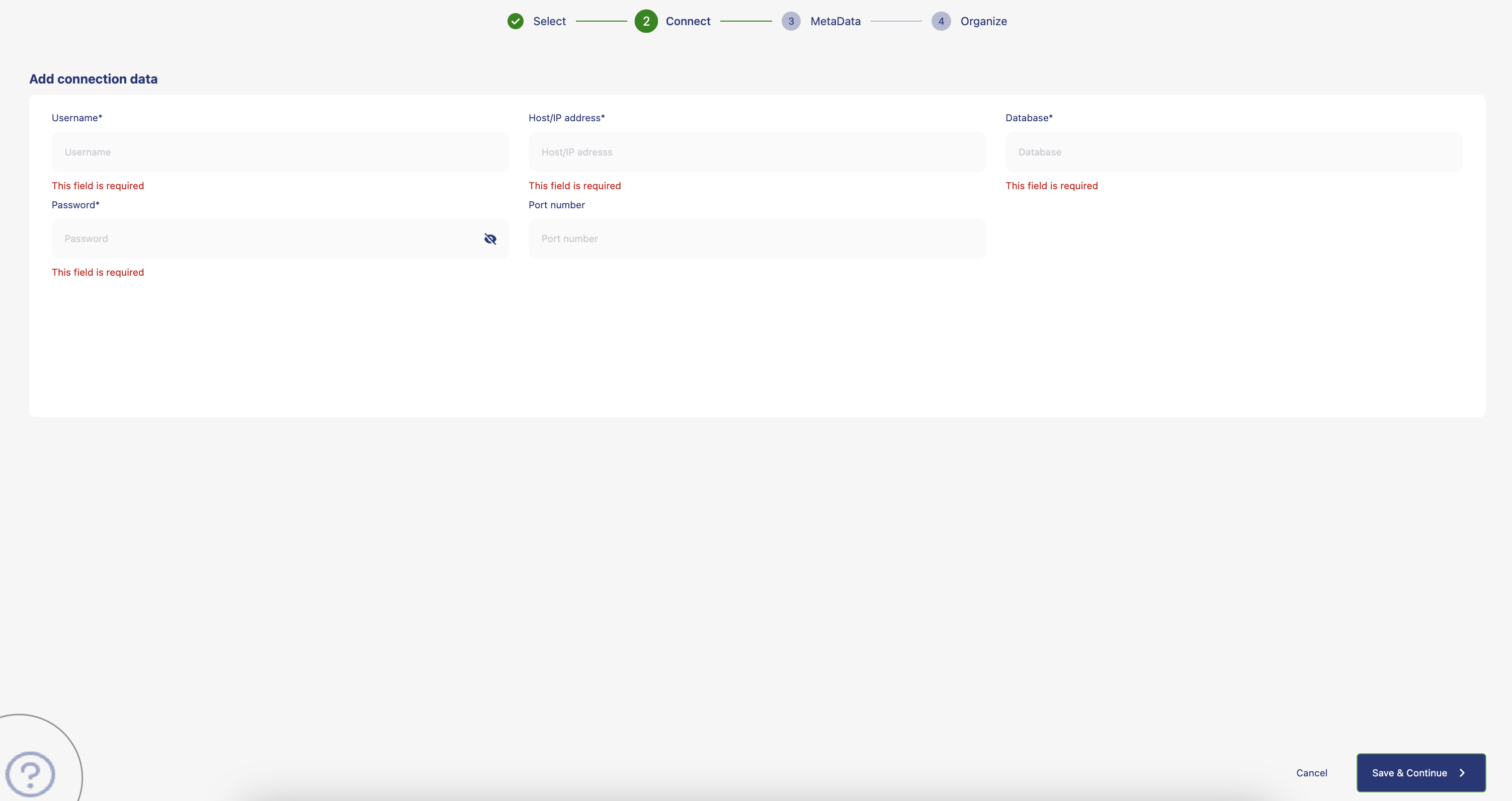
data warehouseand click onsave and continue.Add the connection credentials to your database and click on
save and continue.
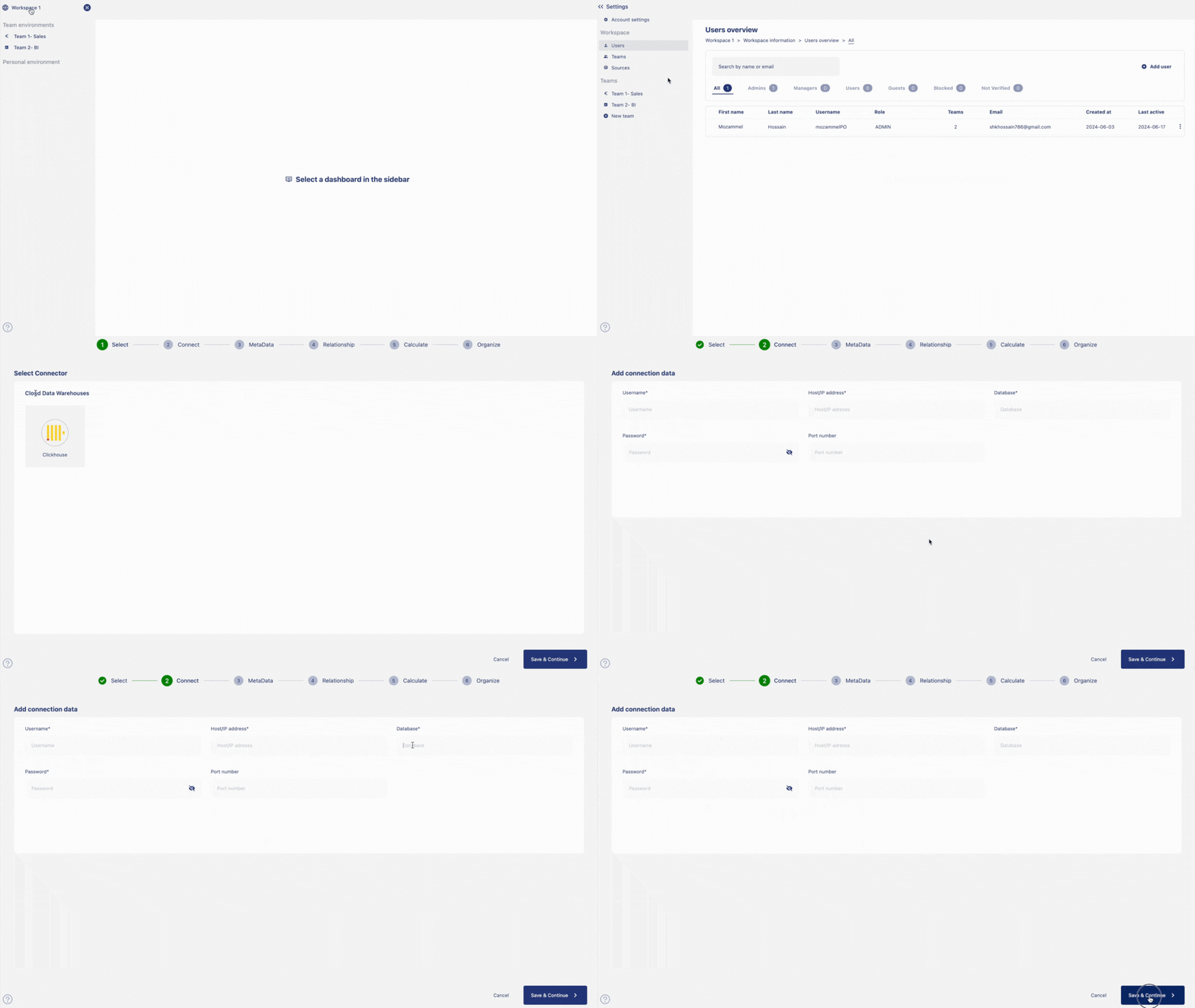
Your connection to the database is established. You can click on save and continue to add meta data and eventually organize the data into a catalog. To know more about how to set up meta data go to the page 'add meta data'. To know how to set up relationships between the data go to 'create data relationships' page. To know more about how you can create metrics and calculated columns go to page 'create metrics and calculated columns'. To know more how to organize your catalog go to 'create catalog page'.
Errors handling
What happens if something goes wrong during data connection setup? Don't worry — our data connectors are equipped with powerful error handling mechanisms. If there's an error in the connection setup process, our connectors are designed to handle the errors.
This means you'll receive clear error messages, allowing you to quickly diagnose and resolve any issues.
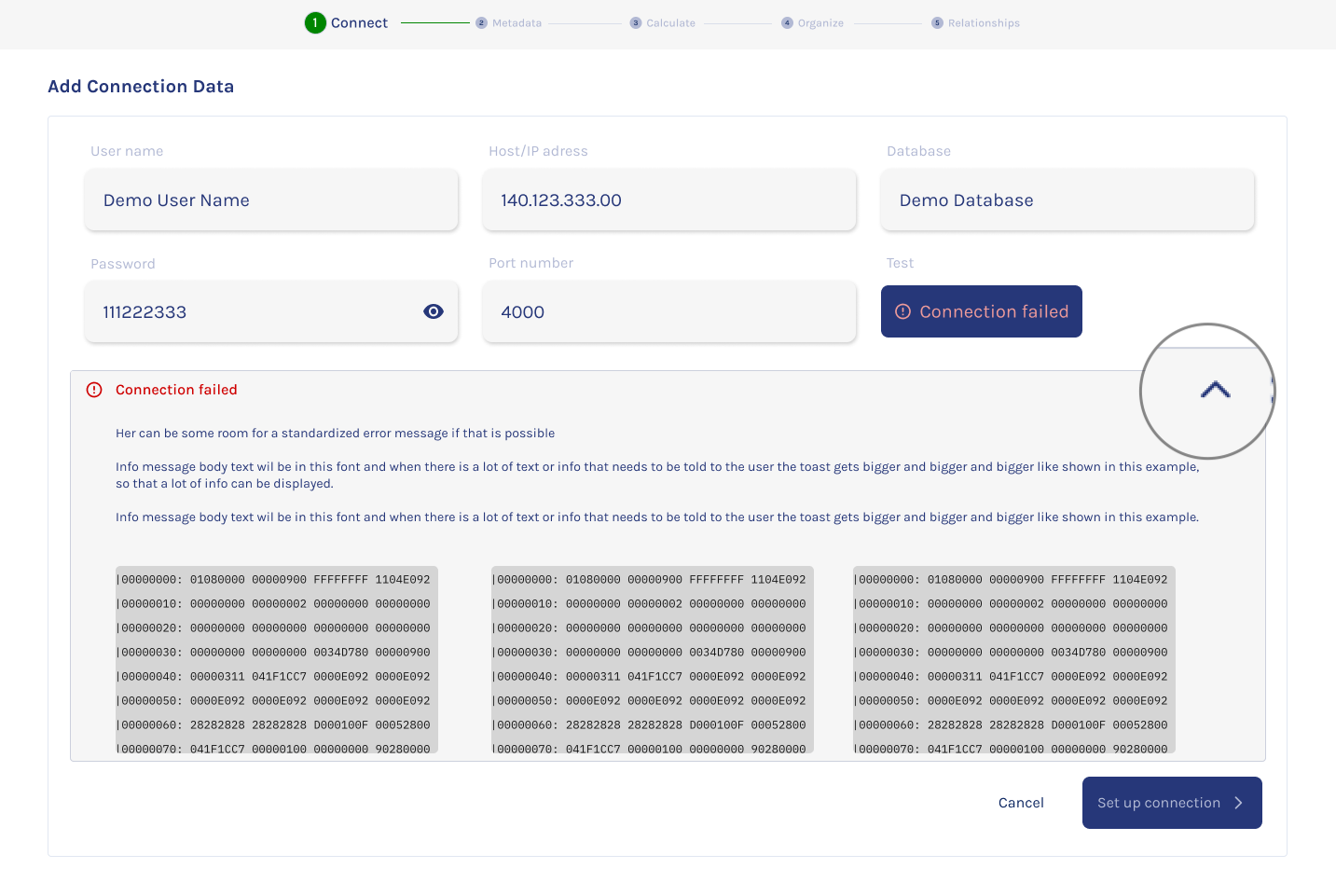
When the connection error occurs, you will see a connection failed message.
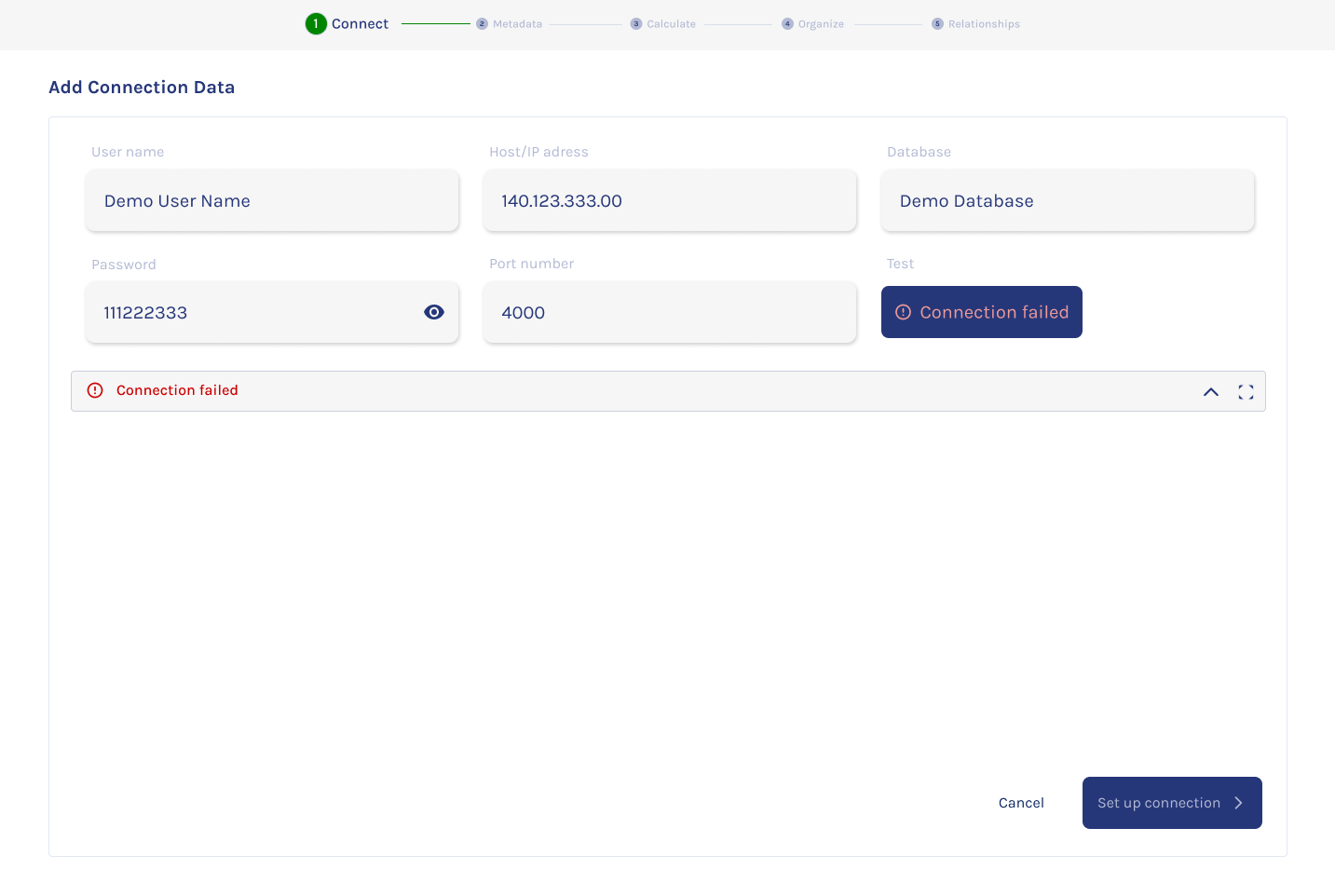
You can click on the arrow button on the error message, to expand the error message to see where the error occured.
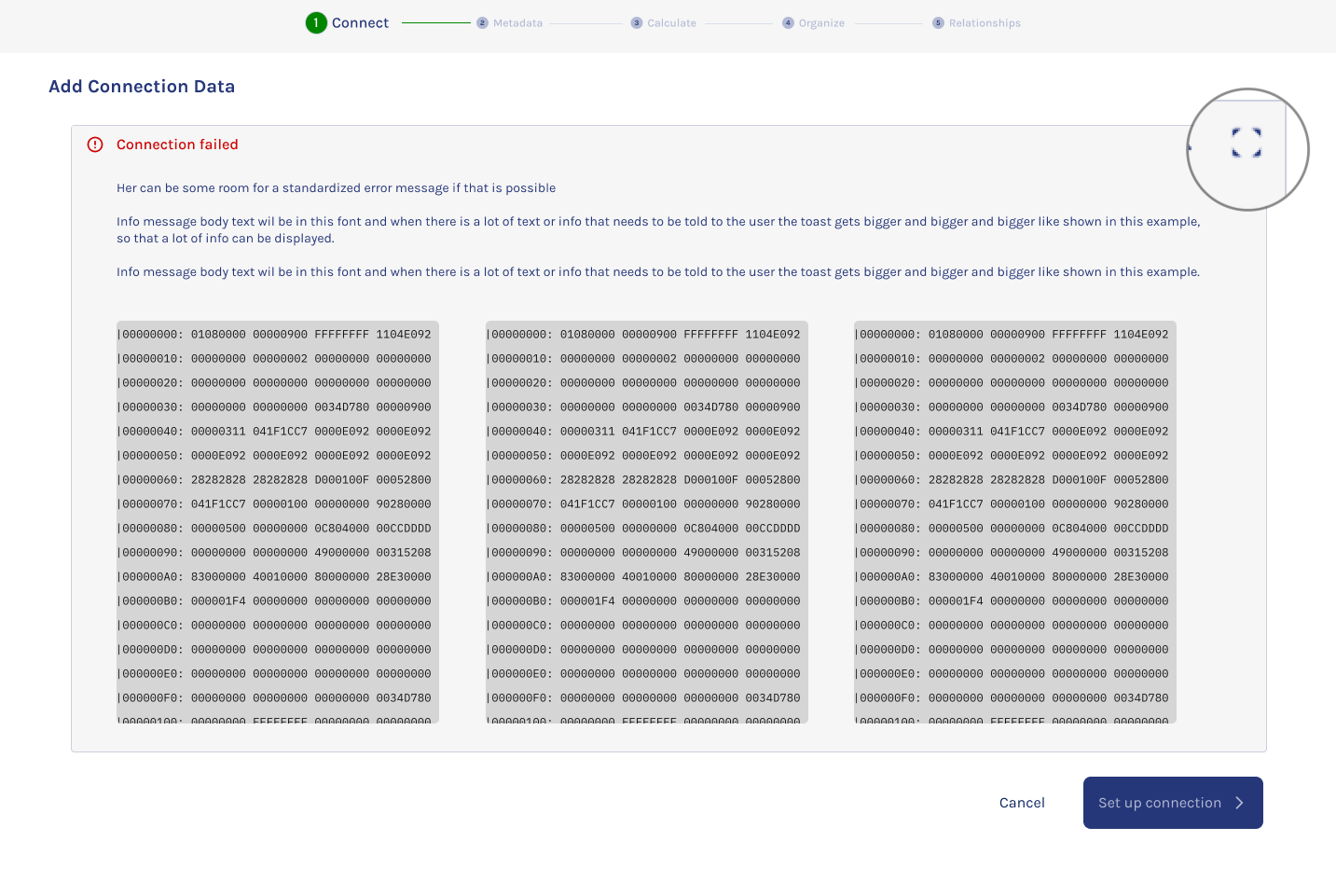
You can also expand the error message pannel to full display to go through all the error messages to resolve the error.
If you think there is a bug for which the error is occuring, use the bug report option by clicking on the '?' at the bottom left corner of your screen.