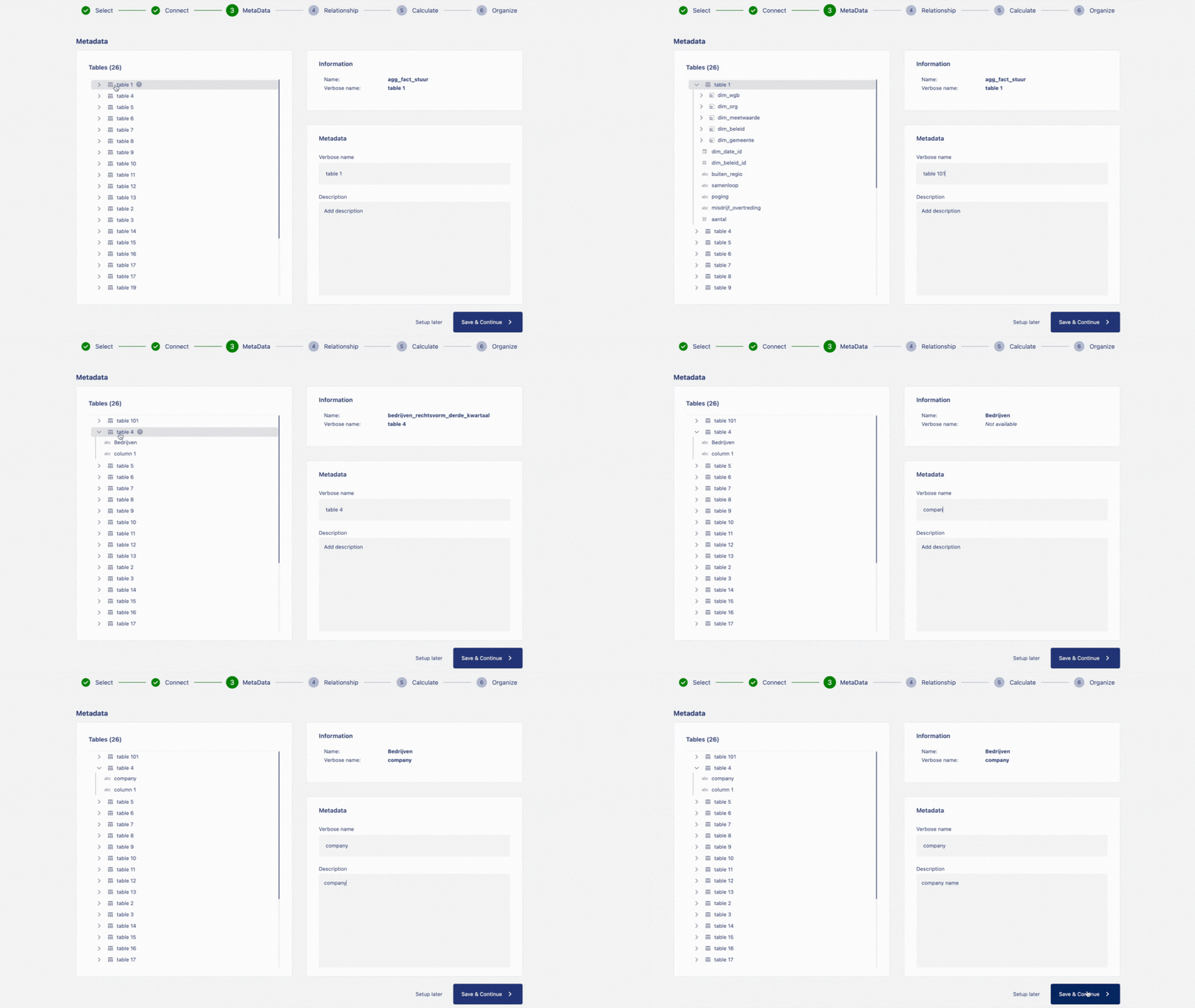
Metadata
Written By Natalia
Last updated Almost 2 years ago
What does metadata do?
Metadata plays an important role in a data catalog by providing essential information about the data that you need, to create visualizations, conduct analysis, and create reports effectively. It ensures data trustworthiness, enables data exploration, and helps you to make informed decisions based on accurate and reliable data.
Metadata serves as essential information about the data, including tables and columns source names and descriptions about the data. You can see metadata by hovering over the '?' on the table or column names in the catalog while creating visualizations.
Add metadata
While creating a new connection to the source, after the connection is established, if we press save and continue, next step is setting up metadata. If you want to add metadata to an already existing catalog, go to the chapter 'how to edit metadata'.
On the page to set up metadata, on the left-hand side container, we can see the list of tables and columns from the data source. On the right-hand side, on top container we can see the information related to the selected table or column from the source. Below the information container, we can see the container with the option to input metadata such as verbose name (a given name to your table different from source name) and a box to add description to the selected item.
To add metadata to your table, click on the souce
table namefrom the left container, give averbose nameto your table and adddecriptionsabout the table.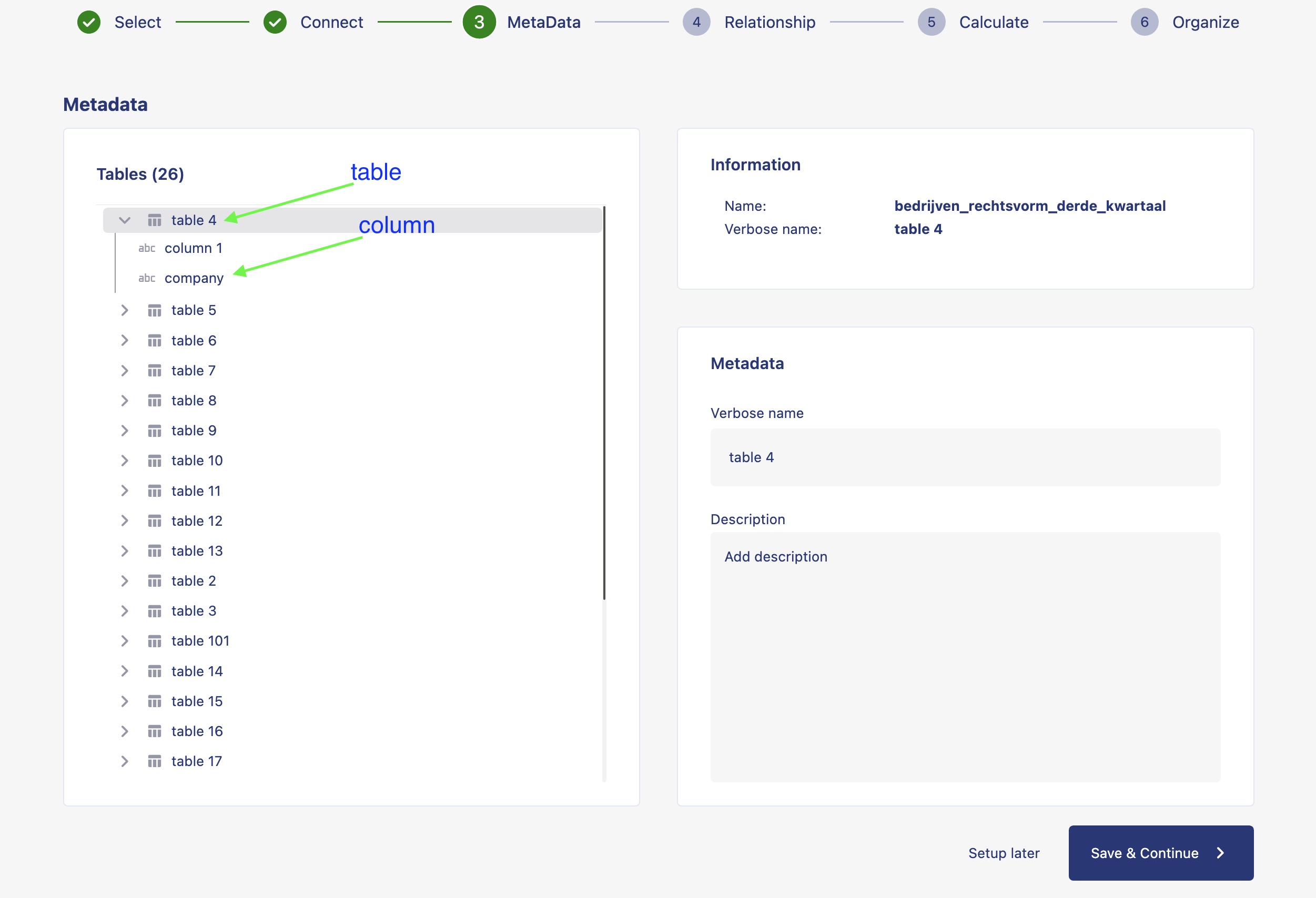
To add metadata to your column, click on the souce
column namefrom the left container, give averbose nameto your column and adddecriptionsabout the column.Click on
save and continueto save your changes.Your metadata is now saved and can be viewed in the catalog.
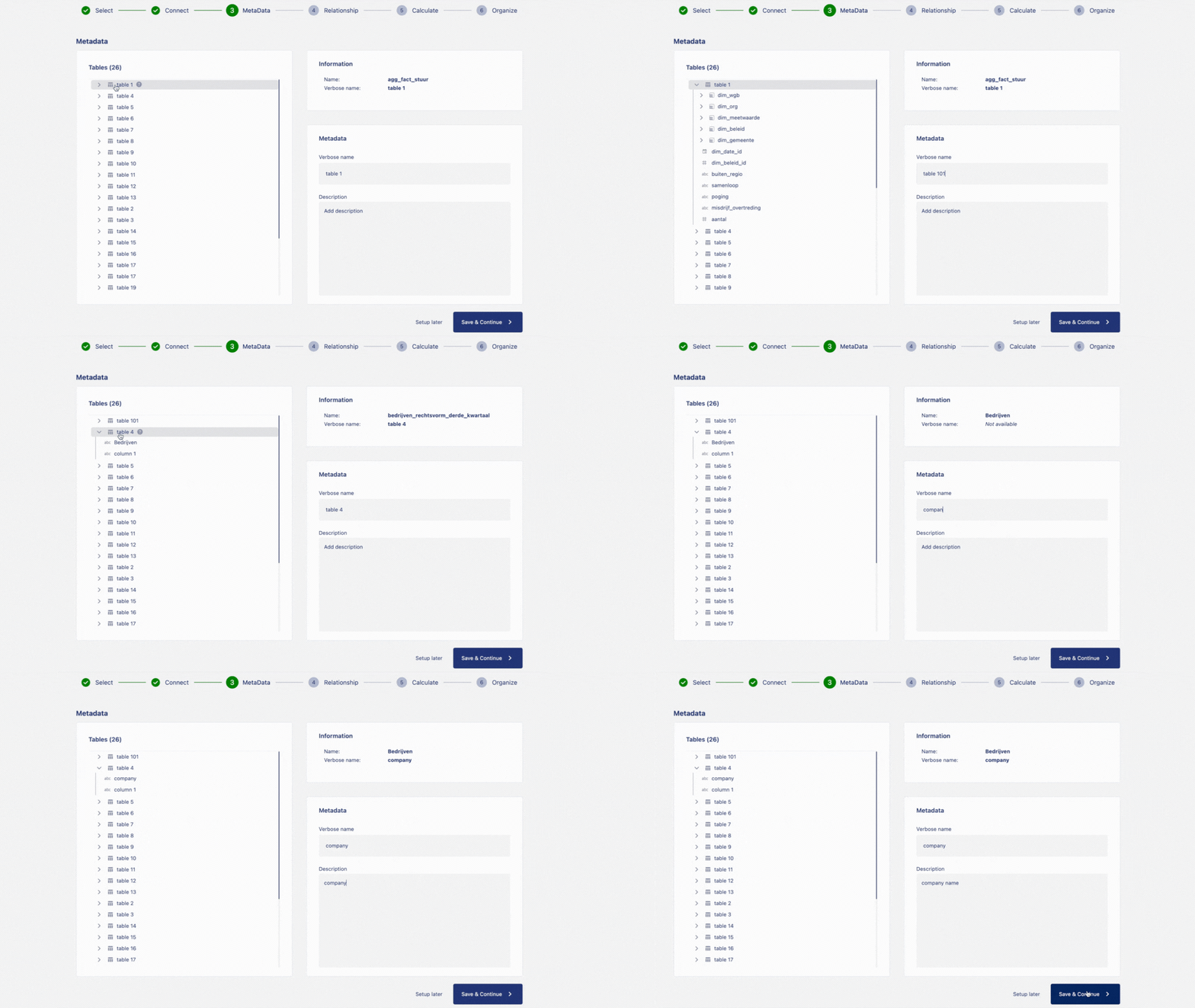
Edit metadata
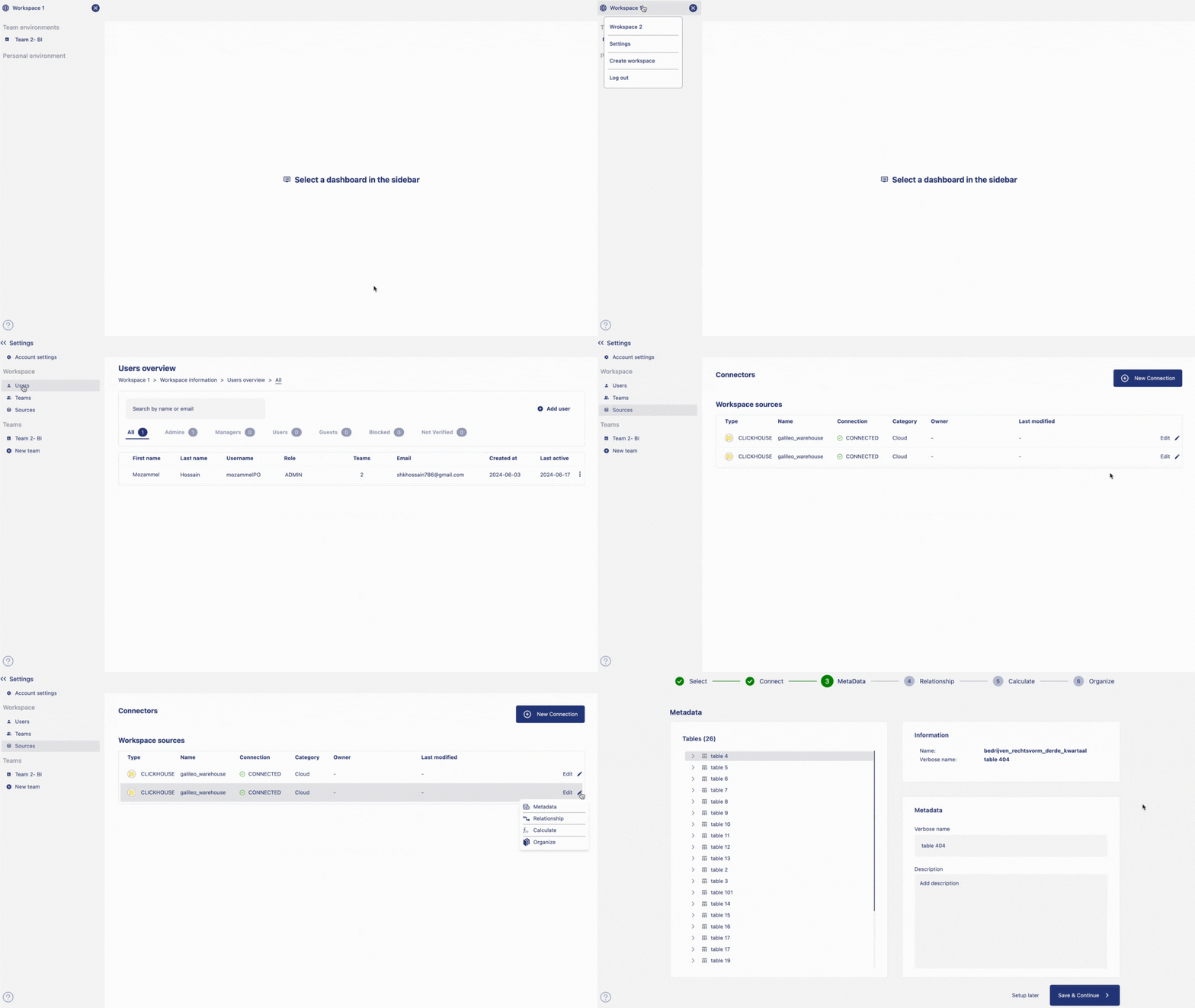
You can add or edit metadata from the source overview page. Follow the follwing steps to add or edit metadata.
Click on name of the workspace. Click on settings. Click on sources.
From the overview of the connectors, click on edit option on the conncetion where you want to add meta data. An option menu will pop up. Click on metadata from the option menu.
On the page to set up meta data, on the left-hand side container, we can see the list of tables and columns from the data source. On the right-hand side, on top container we can see the information related to the selected table or column from the source. Below the information container, we can see the container with the option to input meta data such as verbose name (a given name to your table different from source name) and a box to add description to the selected item.
To add meta data to your table, click on the
souce tablename from the left container, give a verbose name to your table and decriptions to your table. To add meta data to your column, click on thesource column namefrom the left container, give a verbose name to your column and decriptions to your column.Click on save and continue to keep your changes.
Your meta data is now saved and ready to be displayed on the catalog.