Create relationships between your data
Written By Natalia
Last updated Almost 2 years ago
Relationships are a way to link data from different tables for analysis. A relationship shows how two tables are connected by common fields, but it doesn't merge them into one. When tables are linked by a relationship, they stay separate and keep their own details and information.
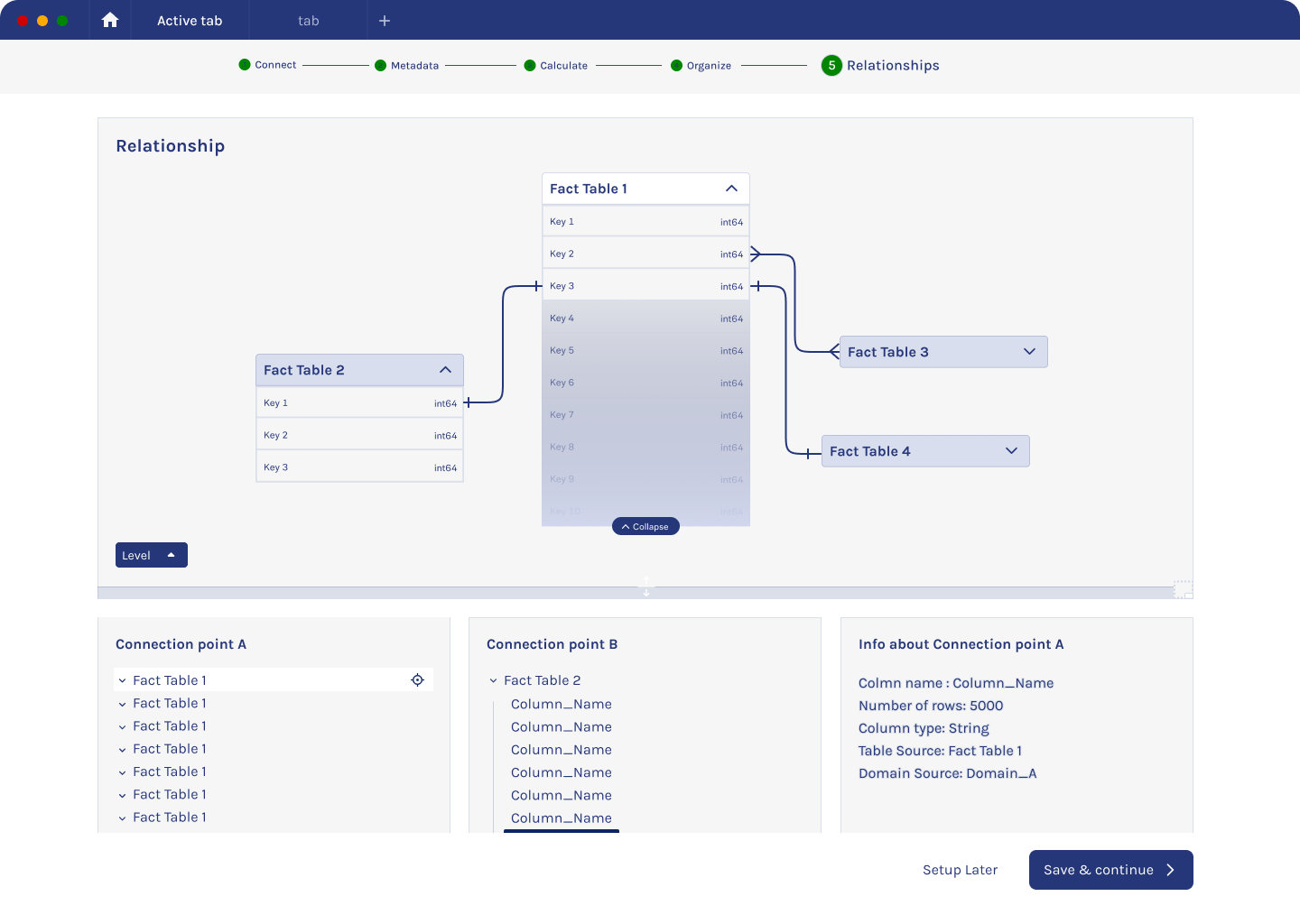
What is the benefit of creating relationships between data?
To understand the benefits of creating relationships, let's take a look at an example. When you use a filter to filter any data, underneath the filters there are data columns connected.
Now, imagine you have two data tables called 'employee' and 'country'. The employee table has a column 'country_id' that contains the same values as the country table’s column called 'id'. The country table also has a column called 'name'.
Now, if you want to filter the employees by country, how do you do it? You create a filter and then create a field. There you select country name. Now you connect the field to the column called country.name.
If you are doing a query where you need to filter the employee on country. You know you have a filter field set to country name but how do you know that the employees table is connected to country. That is why you need to create a relationship, that shows you the connection between the data.
In next page we are going to walk you through, how you can create data relationships in Anlytic platform.
Create relationships
While creating a new connection to the source, after adding meta data, if we press save and continue, next step is creating relationships between the data. If you want to create relationship in an existing connection go to the page edit data relationships.
Follow these steps to create relationships:
Click on a
table namein connection point A.Click on a
column nameto select the column.Click on a
table namein connection point B.Click on a
column nameto select the column.Click on
form relation.Click on the
focus iconof the table to visualize the relationships in the canvas. Relationships between two columns are displayed.Click on
save & continueto save the formed relationship.
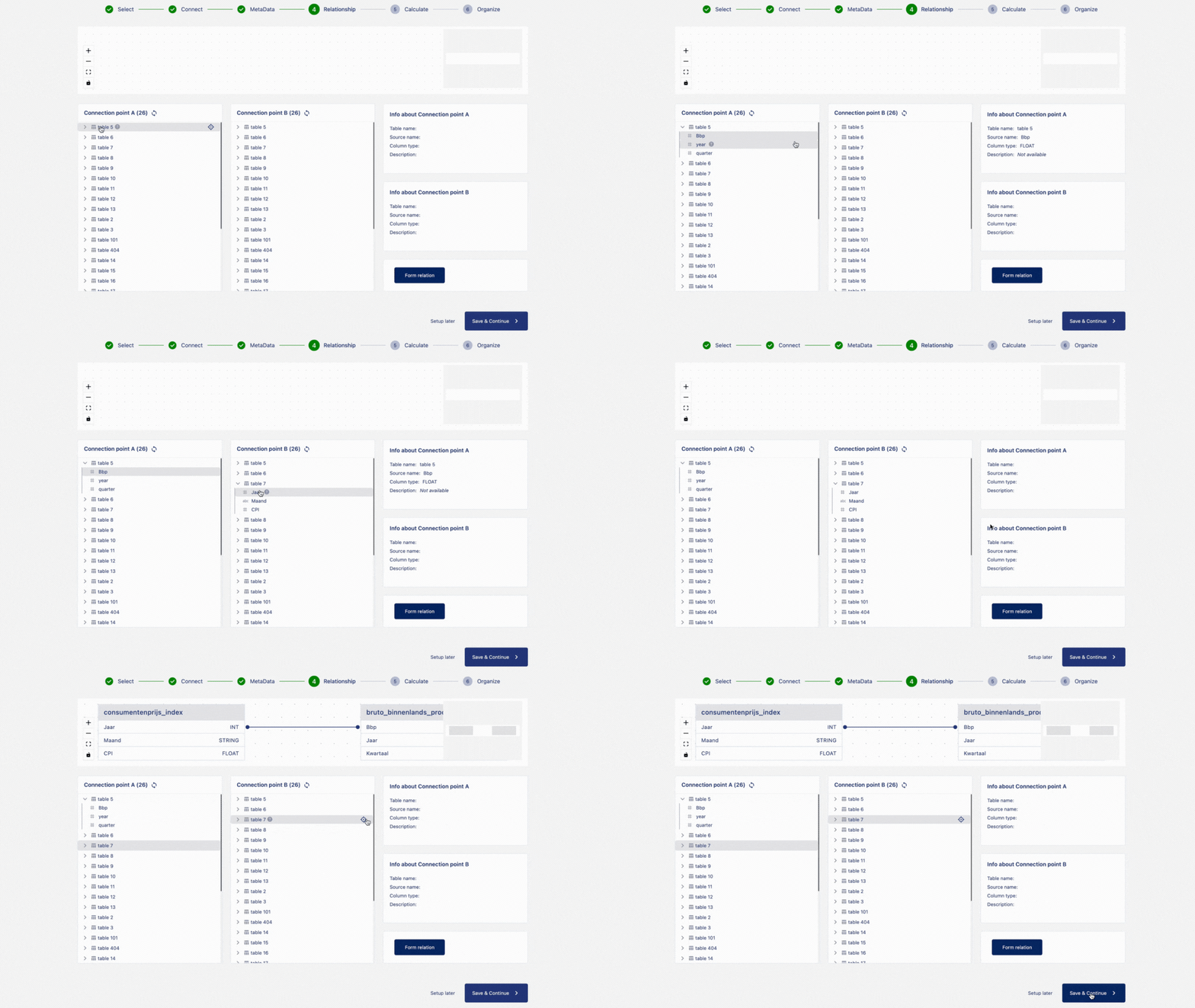
A user can form multiple connection between multiple tables and columns. In the next page we are going to look at how you can edit data relationships.
Edit or remove a data relationship
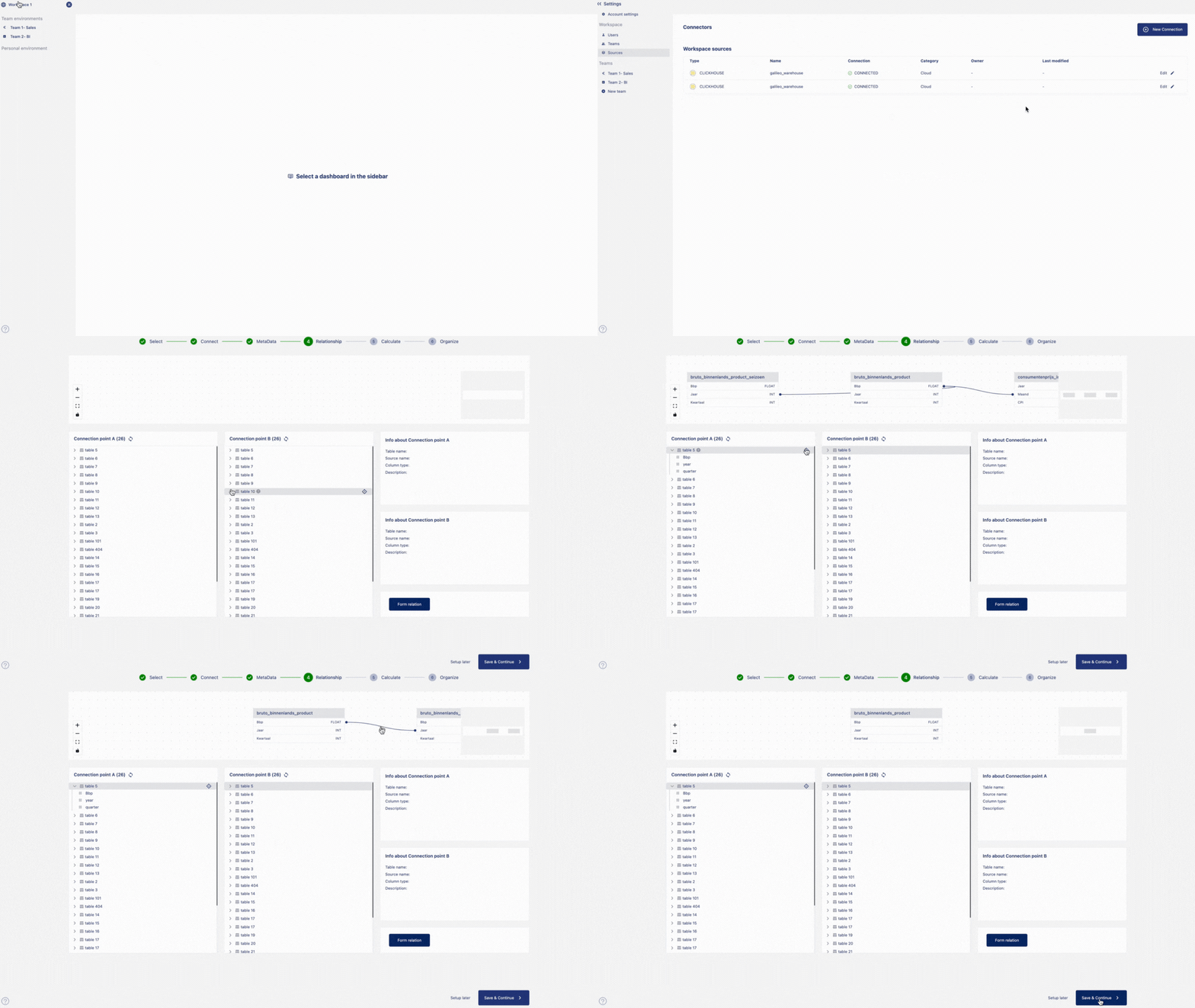
In this page we are going to walk you over how you can edit or remove a data relationships.
Go to
settings. Click onsources. Click onedit. Click onrelationships.To remove a relationship, hover over the relationship line. Click on the
'x'on the line to remove the relationship. Click onsave & continueto save your changes.
In the next chapter we are going to walk you through how you can create formulas in Anlytic platform.